UPP 09 / Production finance
Purchase order tracker
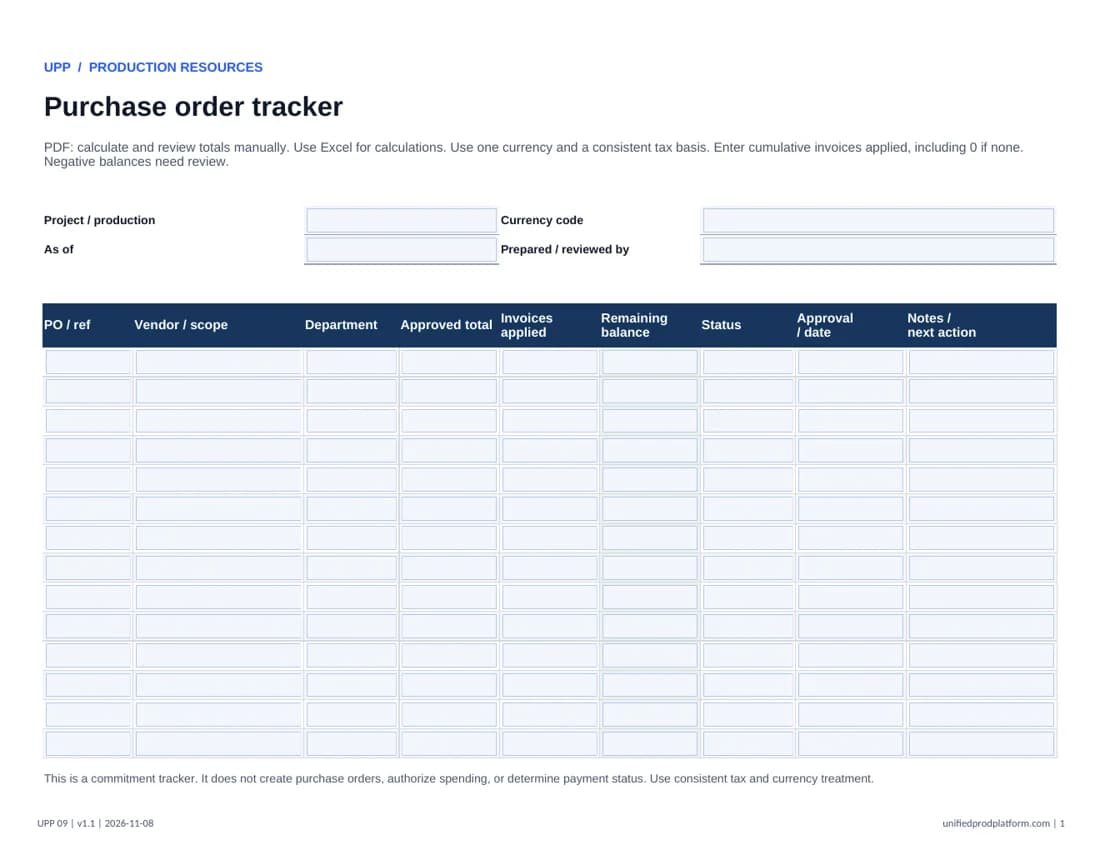
Track approved commitments, invoices applied, and the remaining balance with department and approval references in view.
2-page fillable PDF + protected Excel · Version 1.1 · Updated November 8, 2026 · No sign-up
A clear starting point.
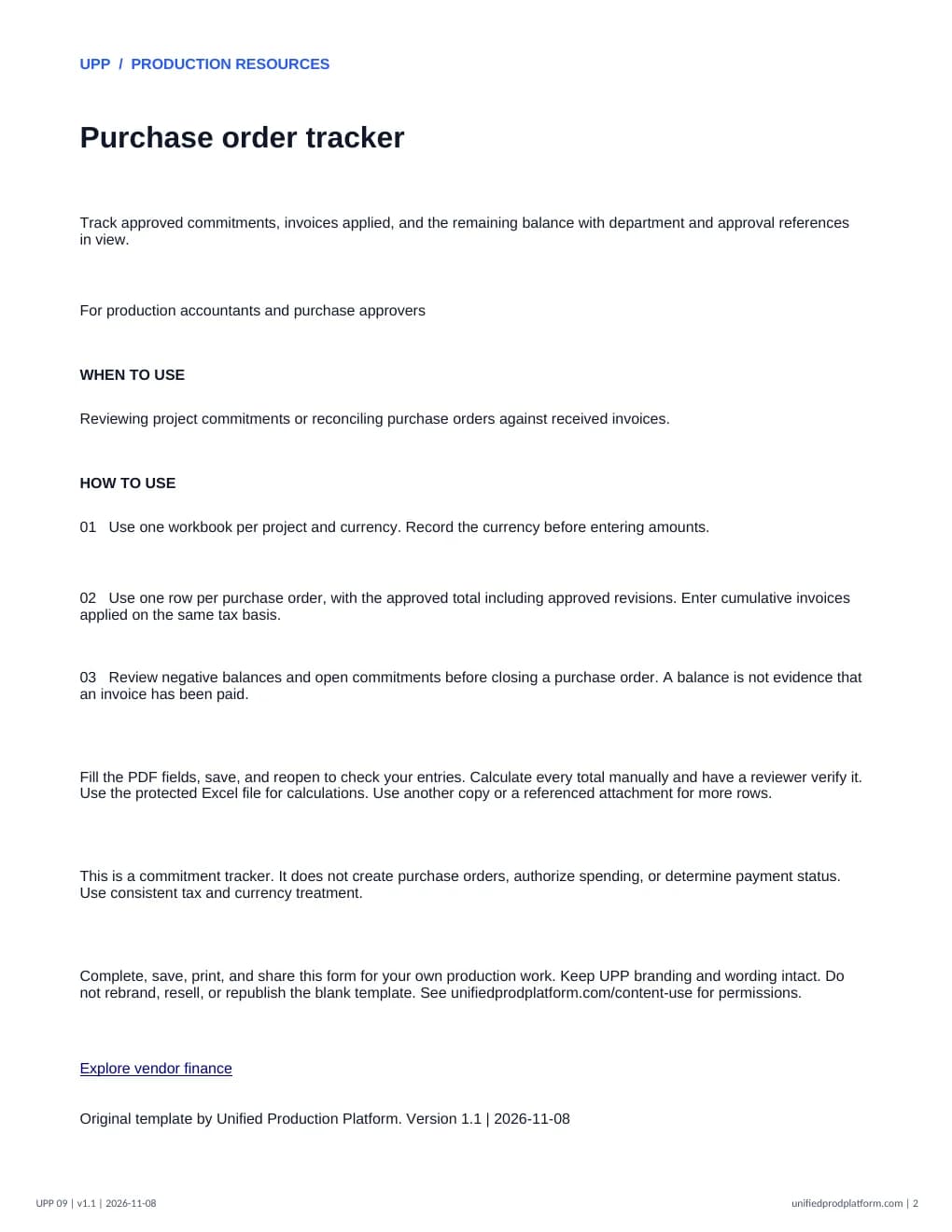
- Made for
- Production accountants and purchase approvers
- When to use it
- Reviewing project commitments or reconciling purchase orders against received invoices.
What is included
- Commitment and invoice tracking
- Remaining-balance formulas
- Status and approval references
How to use this template
Fill the PDF fields, save a copy, and reopen it to confirm your entries before printing or sharing. Use a desktop PDF reader if your browser does not save fields correctly. Use a referenced attachment when more space or additional terms are needed. Excel entry cells are unlocked; formulas, labels, and sheet structure are protected. Excel calculates totals; the PDF requires manual calculation and review. Start another copy when all rows are used.
- 01Use one workbook per project and currency. Record the currency before entering amounts.
- 02Use one row per purchase order, with the approved total including approved revisions. Enter cumulative invoices applied on the same tax basis.
- 03Review negative balances and open commitments before closing a purchase order. A balance is not evidence that an invoice has been paid.
This is a commitment tracker. It does not create purchase orders, authorize spending, or determine payment status. Use consistent tax and currency treatment.
Complete and share this original UPP form for your production work. Keep UPP wording and branding intact. Check the requirements for your project before use. Content use permissions.
Explore vendor financePairs well with
Vendor invoice submission checklistInside the template
Open full PDF in a new tab